Setup guide
About 10 minutes. The bot watches your Gmail for BC Parks availability alerts and pings your phone the instant a site opens — and can hold it in your cart while you decide.
Create your account to startHow it works
BC Parks lets you set a notification for a campground and date range. When a site frees up, BC Parks emails you. This bot reads that email from your Gmail and alerts you (or grabs the site) far faster than you'd catch it by hand.
Step 1 — Install the app & allow notifications
This is how the bot reaches your phone — the moment a site opens, you get a push notification you can tap to confirm.
- Install the BC Parks Bot app and sign in with this account.
- When prompted, allow notifications. The dashboard's Notifications row flips to “App connected” once it's registered.
Step 2 — Connect your Gmail
One click. The bot only reads BC Parks availability emails — nothing else.
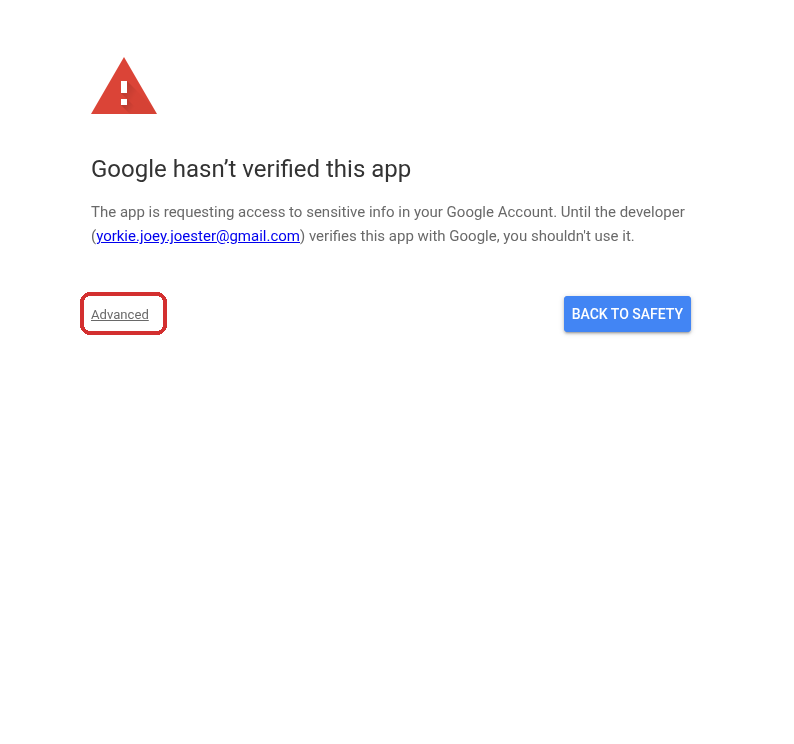
Connect GmailGoogle shows an "unverified app" warning for small private bots like this one. It's safe to continue — the bot only reads BC Parks availability emails. Here's the click-through:
-
On the warning screen, tap Advanced (bottom left).
-
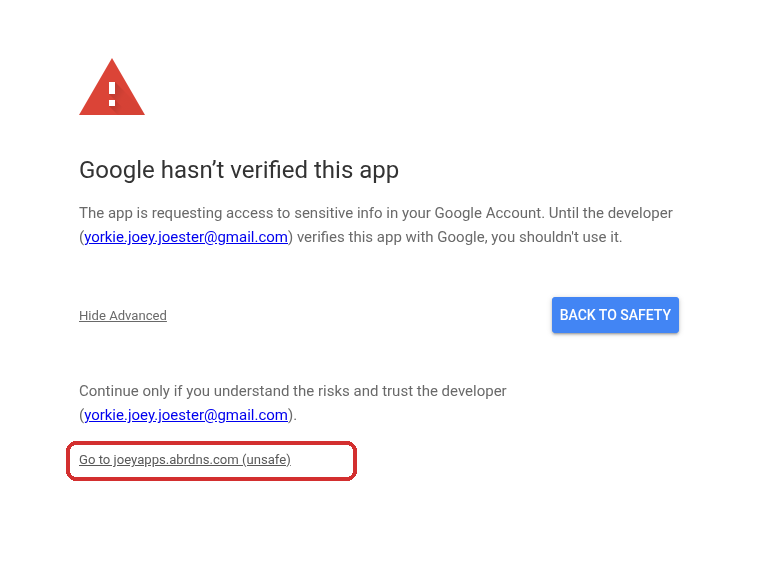
Then tap Go to joeyapps.abrdns.com (unsafe).
-
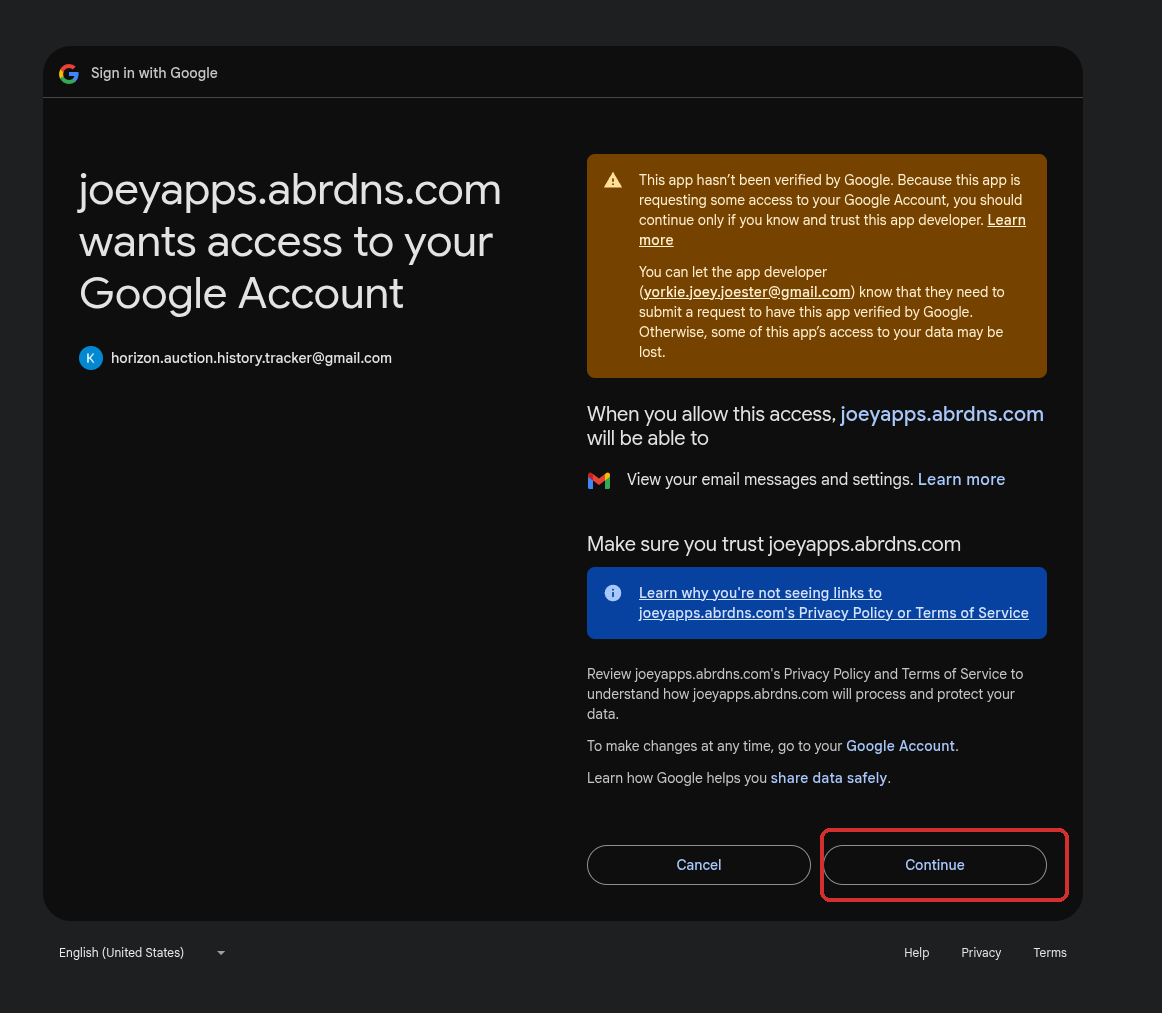
Choose your Gmail account, then tap Continue to grant access.
Step 3 — Choose a booking mode
Set this in Settings → Booking.
- Notify only — you get a push notification the moment a site opens and book it yourself on BC Parks. No BC Parks login needed.
- Auto-reserve, then notify — the bot logs into BC Parks, holds the site in your cart for ~15 minutes, then pings you a link to confirm. Needs your BC Parks login (Step 4).
Step 4 — BC Parks login & card (auto-reserve only)
Skip this if you chose Notify only.
- Add your BC Parks email & password in Settings so the bot can hold the site.
- A card is optional — save it now for instant checkout, or leave it blank and type it on the confirmation page when a site opens.
- Set your party size (adults / youth / children) so the hold matches your group.
Step 5 — Set a BC Parks notification
This is what actually triggers the bot.
- Go to BC Parks → Notifications and sign in.
- Create a notification for the campground, dates, and equipment you want.
- Make sure BC Parks emails arrive at the same Gmail you connected in Step 2.
That's it — when BC Parks finds availability, the bot takes it from there.